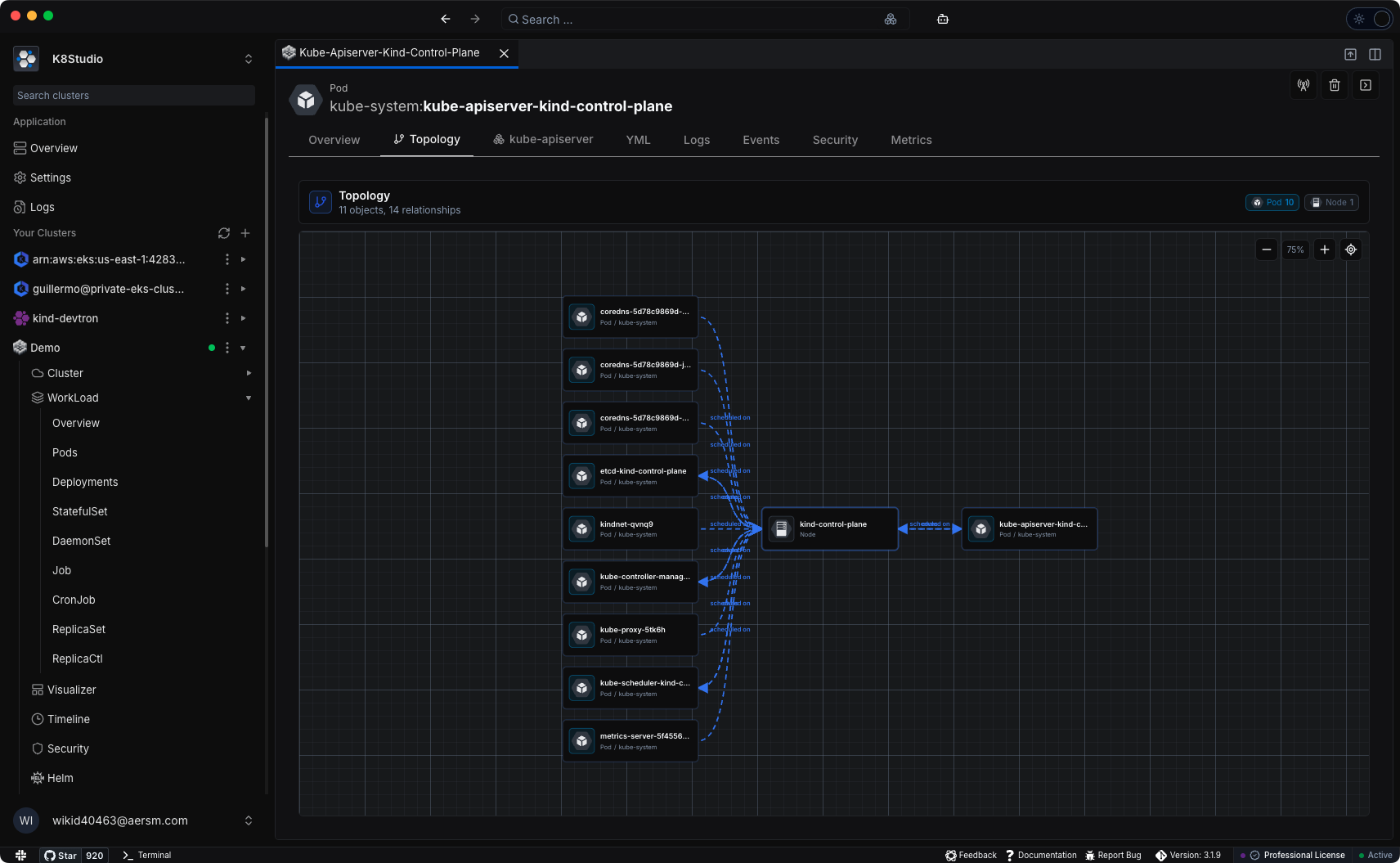

The new Object Topology tab in K8Studio gives you an interactive relationship diagram for any Kubernetes resource, so you can map dependencies and trace blast radius without CLI guesswork.
The relationship problem in Kubernetes
Kubernetes is built on relationships. A Deployment manages ReplicaSets. ReplicaSets own Pods. Those Pods mount Secrets and ConfigMaps, claim PersistentVolumes, and sit behind Services that route traffic to them. When something breaks, or when you're planning a change, you need to understand the full picture of what's connected to what.
The CLI doesn't give you that picture easily. You kubectl describe a Deployment, note the ReplicaSet name, describe the ReplicaSet, filter the pods, describe a pod, and start checking each mounted volume and environment variable reference individually. This is fine for small clusters. For anything real-world, it's slow and easy to miss something.
The Object Topology tab in K8Studio 3.1.9 is designed to close that gap.
What Topology shows
The Topology tab is available from any object's detail view. Select a Deployment, a Service, a Pod, a ConfigMap, or whatever you're investigating, and the Topology tab renders an interactive diagram of that object and its related Kubernetes resources.
For a Deployment, you'll see:
- The ReplicaSets it manages
- The Pods those ReplicaSets have created
- Services that route to those Pods
- ConfigMaps and Secrets referenced by the Pods
- PersistentVolumeClaims in use
Each resource type uses its Kubernetes icon, so you can identify what you're looking at without reading every label. Arrows between nodes show the direction of the relationship.
Following relationships without getting lost
Topology diagrams can easily become overwhelming if every shared object fans out into everything that depends on it. Object Topology is designed to stay focused:
- Common cluster-wide objects, like
kube-root-ca.crtor shared nodes, don't automatically expand into all of their dependents when you're looking at a Deployment. The diagram stays relevant to the object you selected. - If you select one of those shared objects directly, then its full connection set is shown.
This means you get a diagram that answers your question rather than one that shows you everything in the cluster at once.
Hovering over any node highlights its connected edges, so you can trace one relationship path at a time without visual noise.
The diagram supports pan, zoom, and centering, so it remains comfortable to use whether you're looking at a small isolated service or a complex multi-component application.
When to use Object Topology
Before making a change: Select the ConfigMap or Secret you're about to modify and see which Pods will be affected. Understand the blast radius before you touch anything.
During an incident: Select the failing Pod and see what it's connected to, which Services are routing to it, which ConfigMaps and Secrets it depends on, and whether its PVC is shared with anything else.
During onboarding: Help new engineers understand how a service is assembled without asking someone to explain it from memory or draw a diagram on a whiteboard.
During a security review: Select a Secret and see immediately which workloads have access to it. No need to manually grep through manifests.
When teaching Kubernetes: The Topology diagram makes abstract concepts like owner references, selectors, and volume mounts visible and concrete.
Availability
Kubernetes Object Topology is available in K8Studio Professional and during the trial period. It's accessible from the detail view of any supported Kubernetes object, with no additional setup required.
Download K8Studio 4.0.3 and open any object's detail view to explore Topology.